One-time task + calendar
See the one-time task workflow and where the task appears on the calendar.
 ReadyFox User Guide
Use this guide when you want exact, step-by-step help using ReadyFox. Each section explains what to tap, what information to enter, what happens next, and includes an optional short video demonstration.
ReadyFox keeps information together in a simple hierarchy: categories organize broad areas of life, providers are the businesses or people connected to those areas, assets are the specific things you manage, and tasks are the reminders attached to them.
Broad areas such as Home, Car, Garden, Pets, Self Care, or a category you create yourself.
Businesses, professionals, or organizations such as a mechanic, veterinarian, insurance company, doctor, utility company, or other service.
Specific things you want ReadyFox to help maintain or remember, such as a vehicle, appliance, account, home system, pet, or important document.
One-time or repeating reminders that can be connected to a category, provider, or asset.
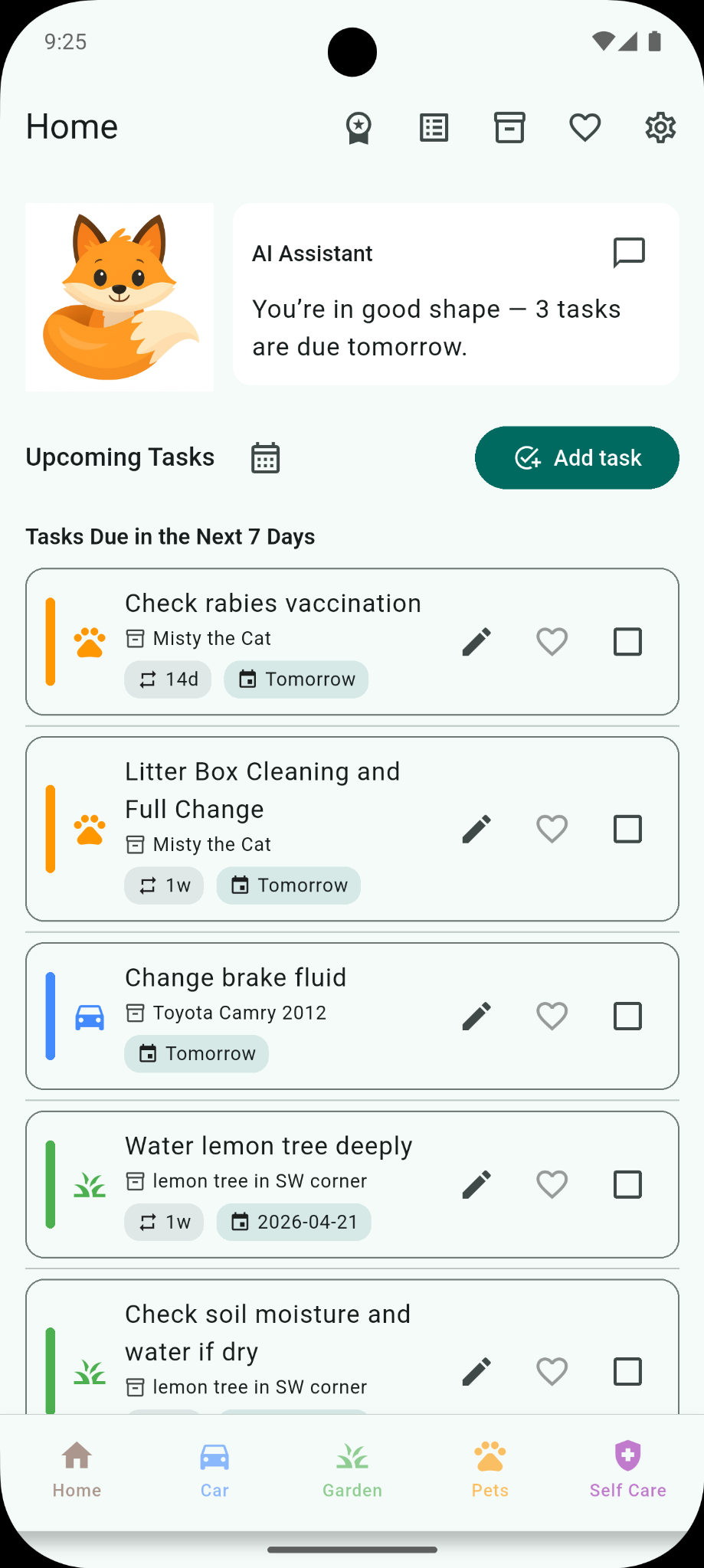
Tasks are the core of ReadyFox. Create one-time reminders for something that happens once, or recurring reminders for responsibilities that return on a regular schedule.
Start a new reminder from ReadyFox.
Use this when the reminder only needs to happen once.
Use wording that tells you exactly what needs to be done.
Choose when the task should be due.
Set the time when the reminder should alert you.
Assign the task to a category and, when useful, connect it to a provider or asset.
ReadyFox places it with your upcoming reminders.
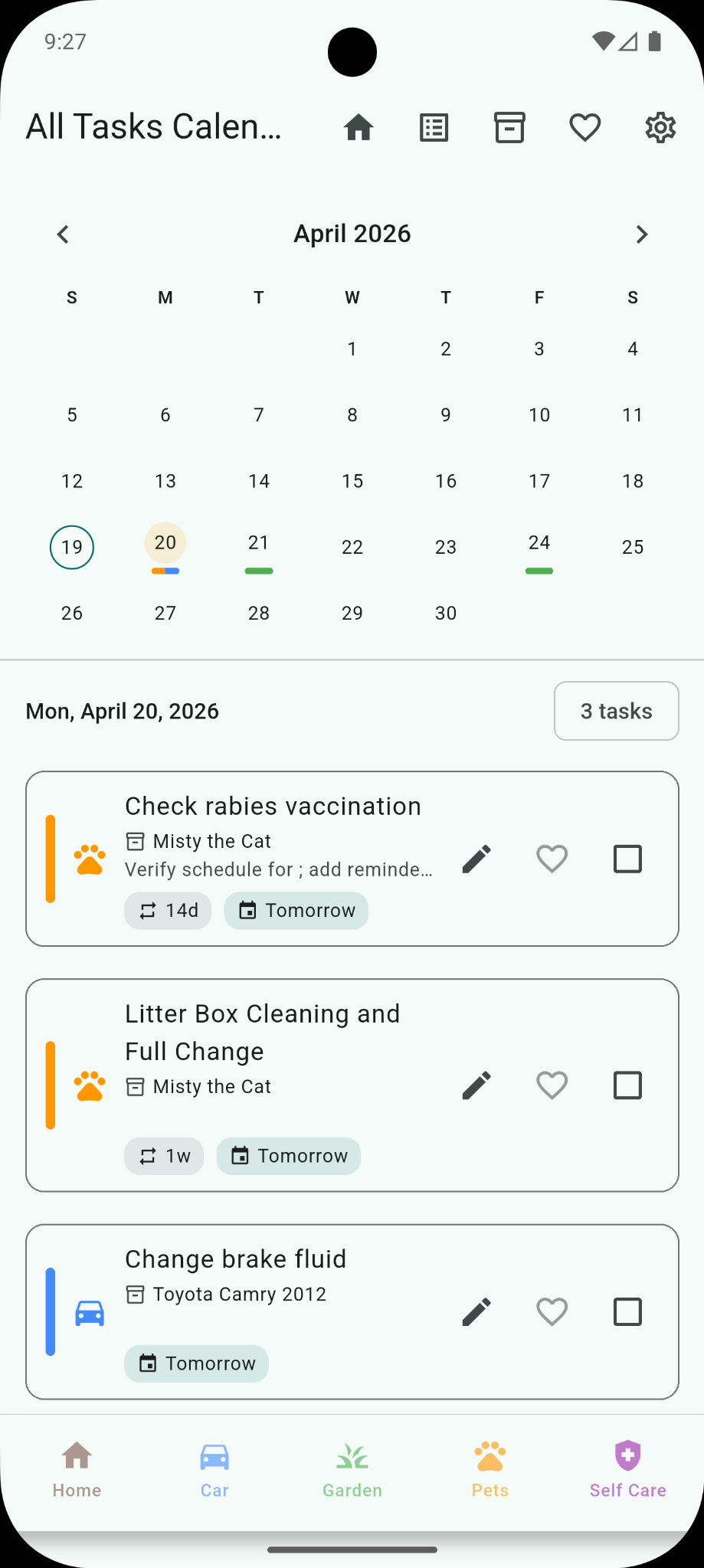
See the one-time task workflow and where the task appears on the calendar.
Use a recurring task for monthly bills, annual renewals, routine maintenance, or another responsibility that repeats.
Start a new task just as you would for a one-time reminder.
Select the recurrence pattern that matches how the responsibility returns.
This establishes the next occurrence ReadyFox should track.
Set when you want to be alerted for the occurrence.
This keeps the recurring reminder with the information it belongs to.
ReadyFox continues calculating future occurrences from the schedule you selected.
See how to set up a reminder that keeps returning.
Open the relevant task list or upcoming view.
Mark the current task occurrence complete.
See what completion looks like for your task list.
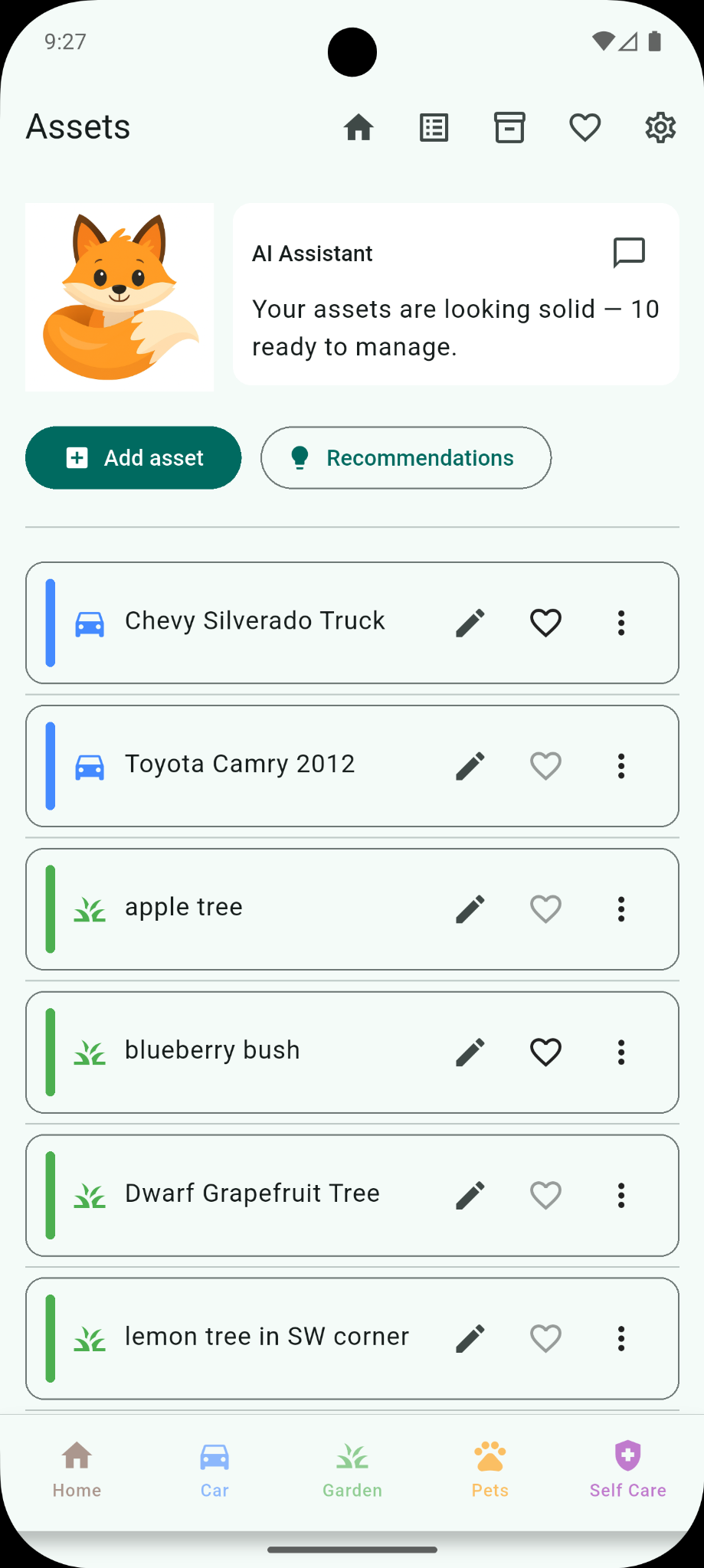
An asset can be a vehicle, appliance, account, home system, pet, important document, or another specific item that has information or reminders attached to it.
Open the Assets area and start a new asset.
Add the identifying details that will help you recognize and manage the asset later.
Choose the area of life where the asset belongs.
If the asset has a saved provider, use the available provider/favorite control to connect it.
Add reminders that belong specifically to this asset so its maintenance stays together.
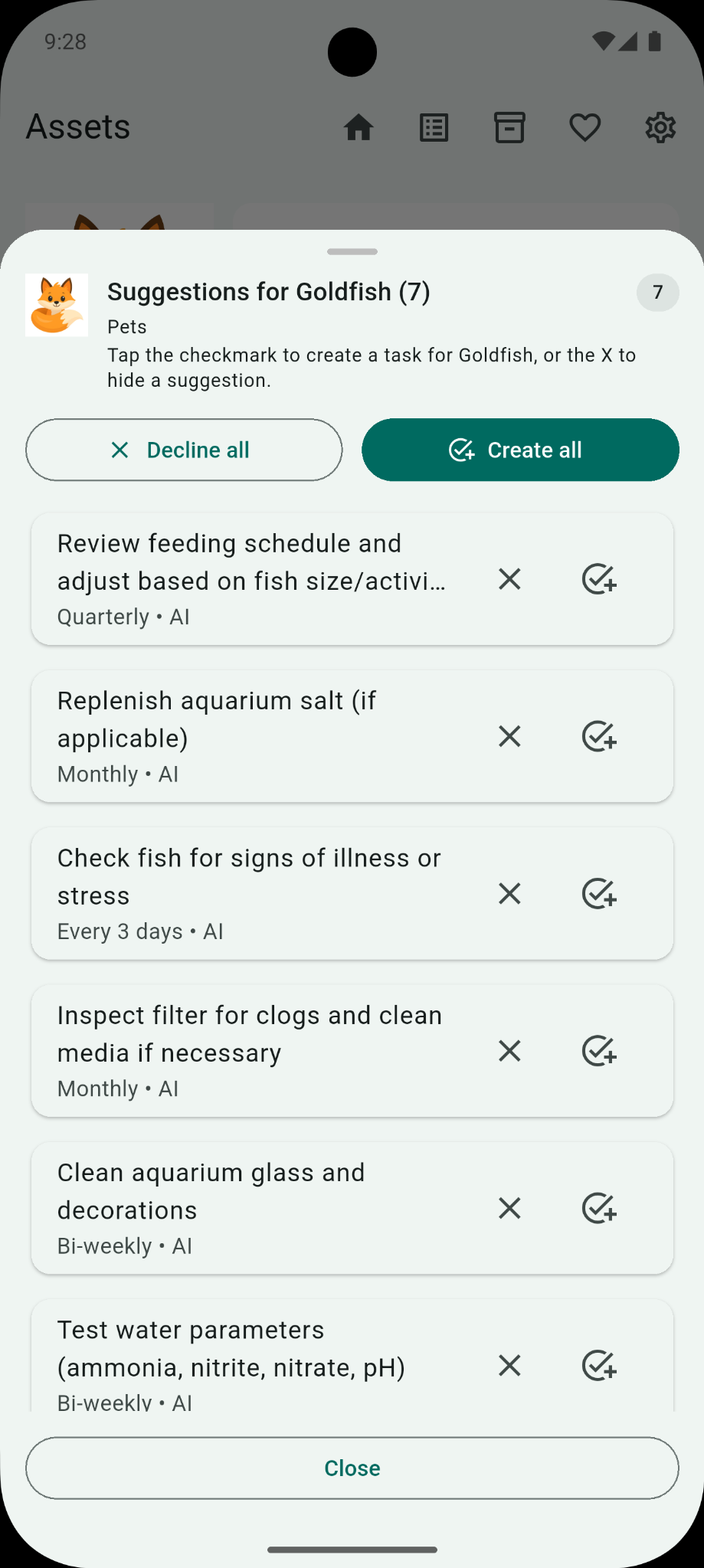
For supported assets, Tails can suggest maintenance reminders that may be useful.
Go to the specific asset you want suggestions for.
Tails reviews the information you provided for that asset.
Decide which suggested reminders actually apply to your situation.
Add only the suggestions you want as ReadyFox tasks.
See how an asset and its reminders stay connected.
Review suggested maintenance and choose what to add.
Categories keep related information together. ReadyFox includes default categories, and you can create your own for a business, volunteer organization, social club, hobby, or anything else you want to manage.
Go to the Categories area from ReadyFox.
This opens the category setup screen.
Use a name that will make sense on the bottom category ribbon.
Select the appearance or display choices you want ReadyFox to use for that category.
The new category is now available for assets, providers, and tasks.
Use the category management screen to hide a category from your normal view.
See how to create a category and control whether it appears in your normal view.
Providers make it easier to keep useful contact information near the assets and tasks where you may need it.
Open the Providers area and start a new provider entry.
Add the provider name and any contact or reference information that will be useful later.
For example, a mechanic may belong under Car and a veterinarian under Pets.
The provider can now be associated with relevant items in ReadyFox.
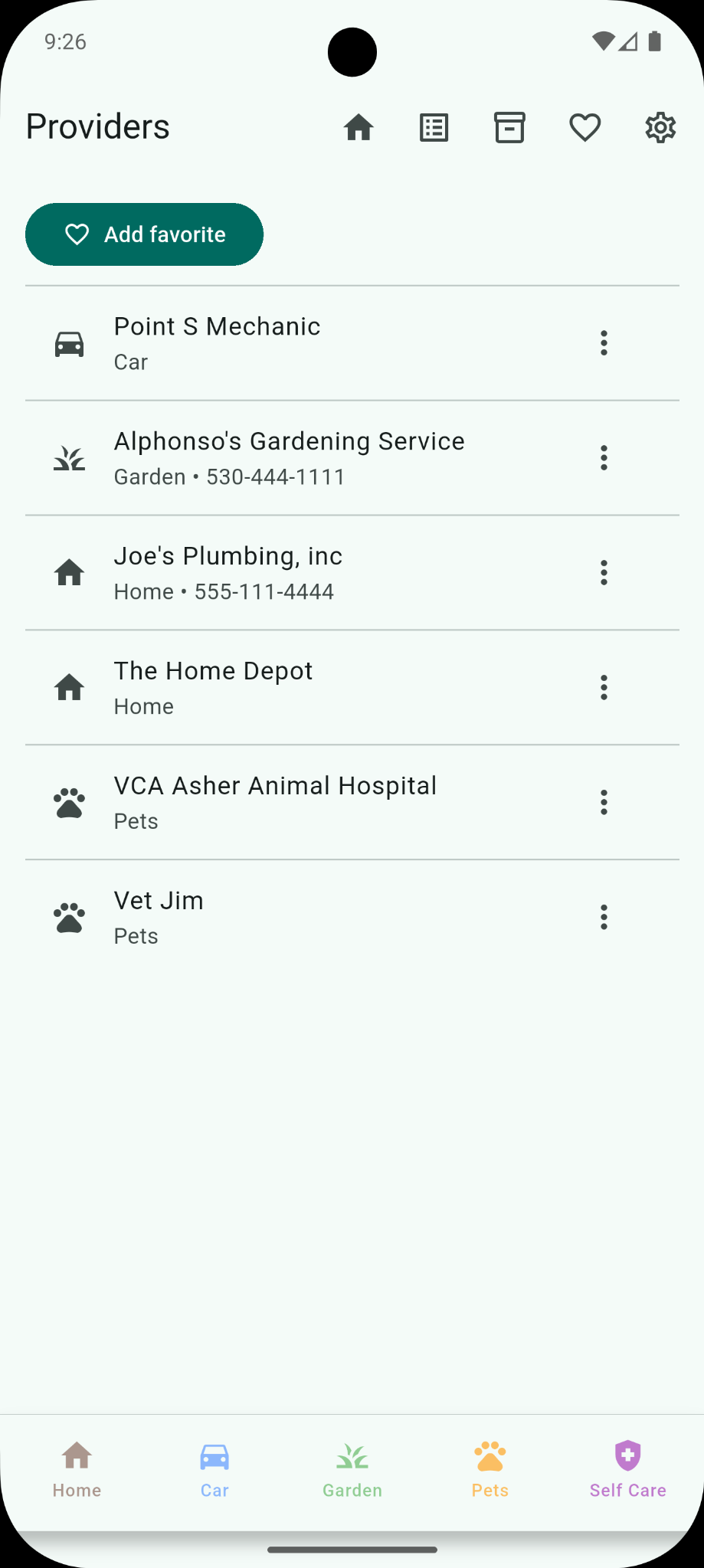
See the provider entry workflow from start to finish.
Tails is ReadyFox's optional AI assistant. It can help you think through recurring responsibilities, organize an area of your life, review ReadyFox information, or identify reminders that may be useful.
Enter the ReadyFox AI chat area.
For example: “What reminders should I create for a newly purchased car?”
Use Tails to help you think through what may need attention.
Review AI suggestions before relying on them or turning them into reminders.
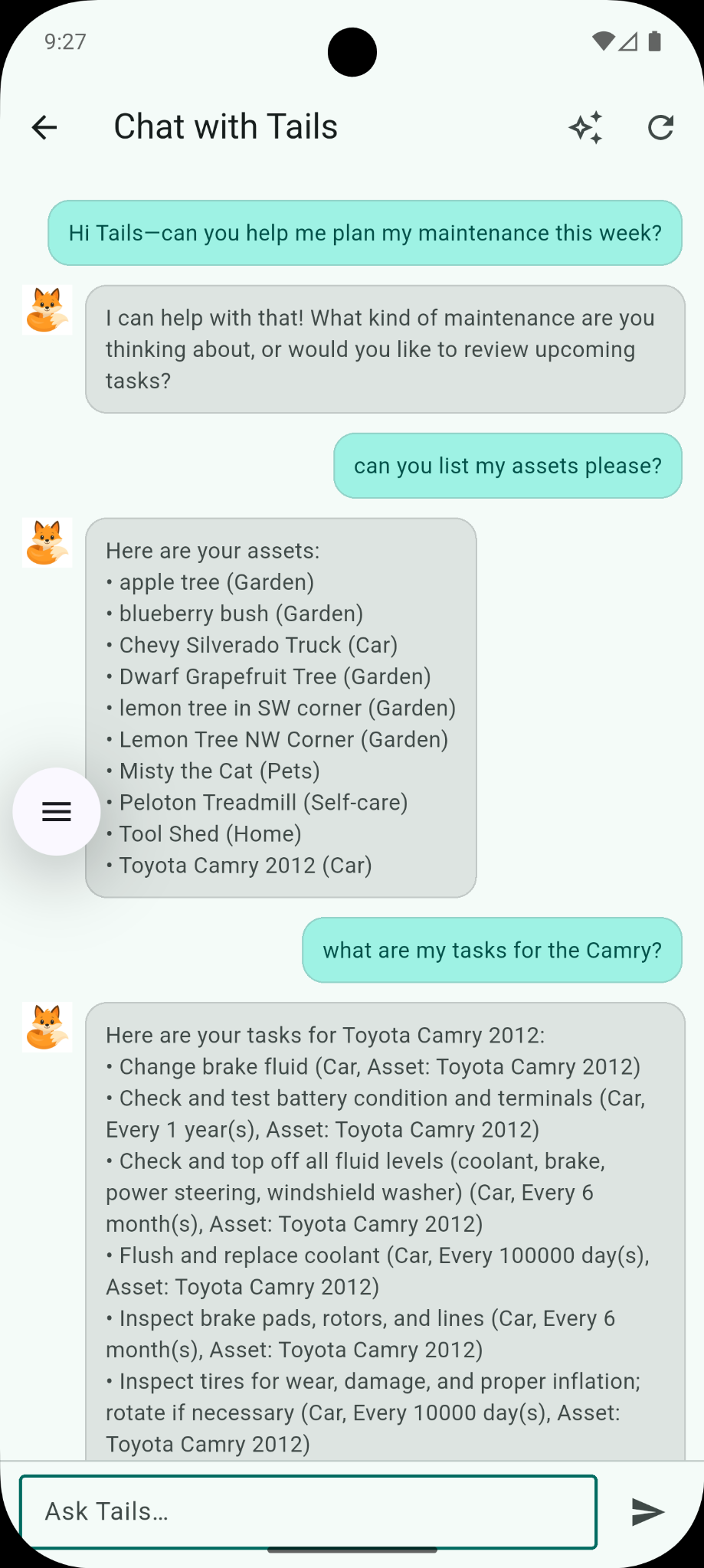
Watch an example of asking Tails for help.
ReadyFox's core reminder and organization features can be used for free. ReadyFox Pro adds Tails AI features and Cloud Sync. Monthly and annual subscription options are available from the ReadyFox Pro screen.
Review the available monthly and annual subscription options.
Your device will display the subscription price and purchase terms before confirmation.
The store handles the subscription purchase and renewal authorization.
Cloud Sync allows ReadyFox information to synchronize across devices signed into the same ReadyFox account.
Cloud data is connected to your ReadyFox account.
Normal syncing can occur without you manually starting it each time.
Use this when you specifically want ReadyFox to request synchronization right away.
See where to select Sync Now.
Go to the ReadyFox settings area.
Ask ReadyFox to check the store purchase state again.
Make sure you are signed into the same ReadyFox account and store account associated with the original purchase.
See where to refresh or restore subscription recognition.
Settings is where you review reminder behavior, time preferences, Cloud Sync, subscription status, account details, privacy information, and support.
Use the ReadyFox settings control.
Review the available reminder behavior and time preferences.
Adjust the available options so reminders appear at useful times.
Confirm that the operating system allows ReadyFox to send notifications.
See where ReadyFox keeps the reminder controls.
Go to the main settings screen.
Open the ReadyFox help and support area.
Use it for questions, problems, or something that is not working as expected.
See how to reach the Help section from Settings.
Manage your ReadyFox account and access the in-app Delete Account option.
Add, hide, rename, delete, or reorder categories as your needs change.
Review ReadyFox privacy information and optional online features.
Start with one category or area of life. Add a provider or asset only when it helps organize your information, then create a few reminders you actually need.
No. ReadyFox's core reminder and organization features can be used for free. Pro adds optional features such as Tails AI and Cloud Sync.
A category is a broad area such as Car or Pets. An asset is a specific thing inside that area, such as a particular vehicle or pet.
The heart control is used to add or associate a saved provider/favorite with the item. It does not mark a task itself as a favorite.
ReadyFox records the completed occurrence and prepares the next scheduled date while preserving the recurrence pattern you selected.
Check both ReadyFox reminder settings and your phone or tablet's notification permission for ReadyFox. Tasks can remain in the app even when the operating system is not allowed to alert you.
No. Notification permission is managed separately by each device, even when Cloud Sync is keeping ReadyFox information synchronized.
Open Settings, go to Account Details, choose Delete Account, and follow the confirmation steps shown in the app.
Open Settings and use Refresh Purchase Status. Make sure you are signed into the same ReadyFox account and store account associated with the original purchase.
Visit ReadyFox Support for help with your account, app behavior, or other questions.